Executive Summary
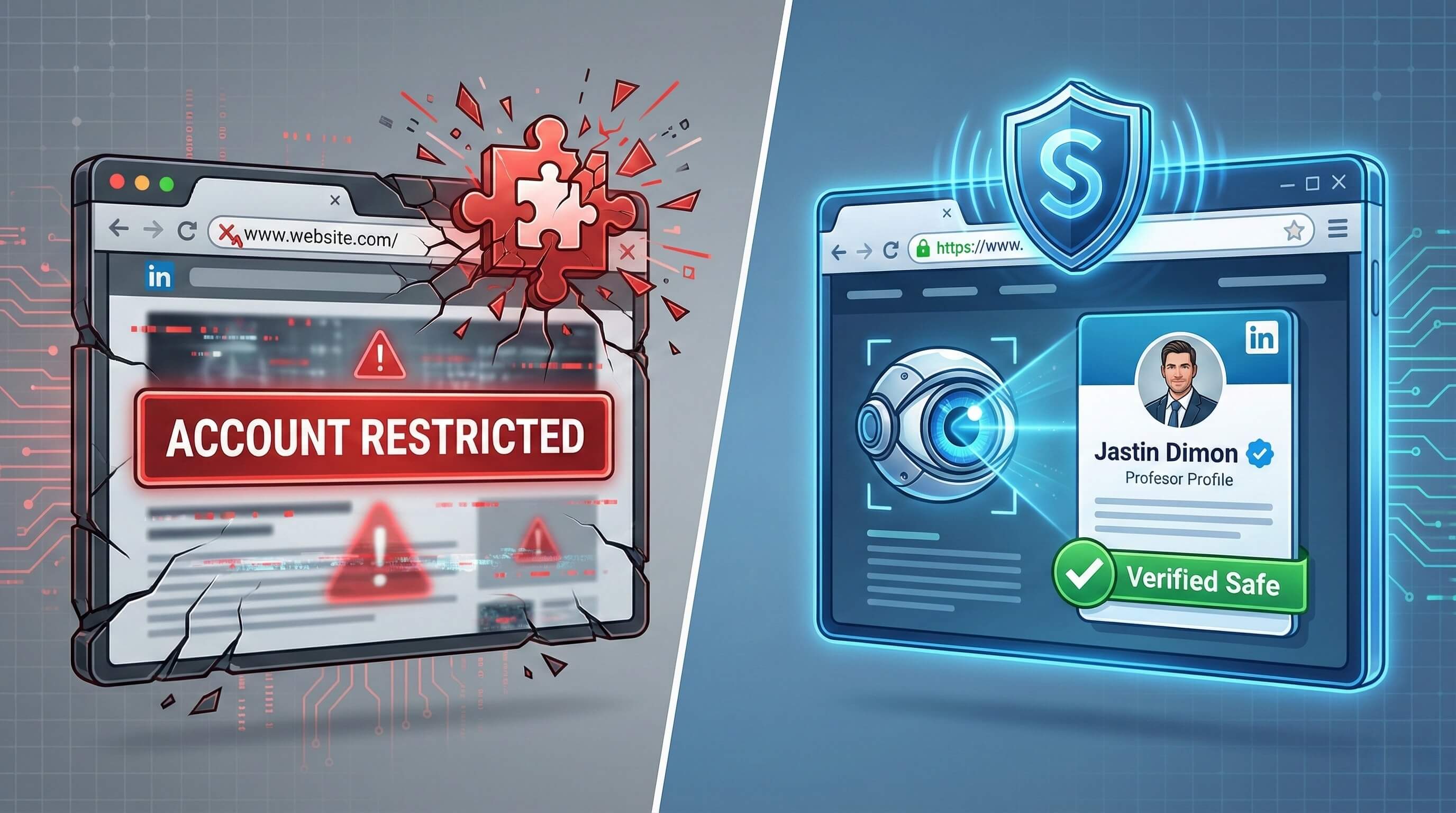
LinkedIn has evolved into a fortress. In 2026, using legacy Chrome extensions (Dripify, Waalaxy, LinkedHelper) is a direct ticket to a permanent ban. LinkedIn's "Project Fortress" algorithm now detects the Code Injection and DOM Modifications typical of these tools instantly.
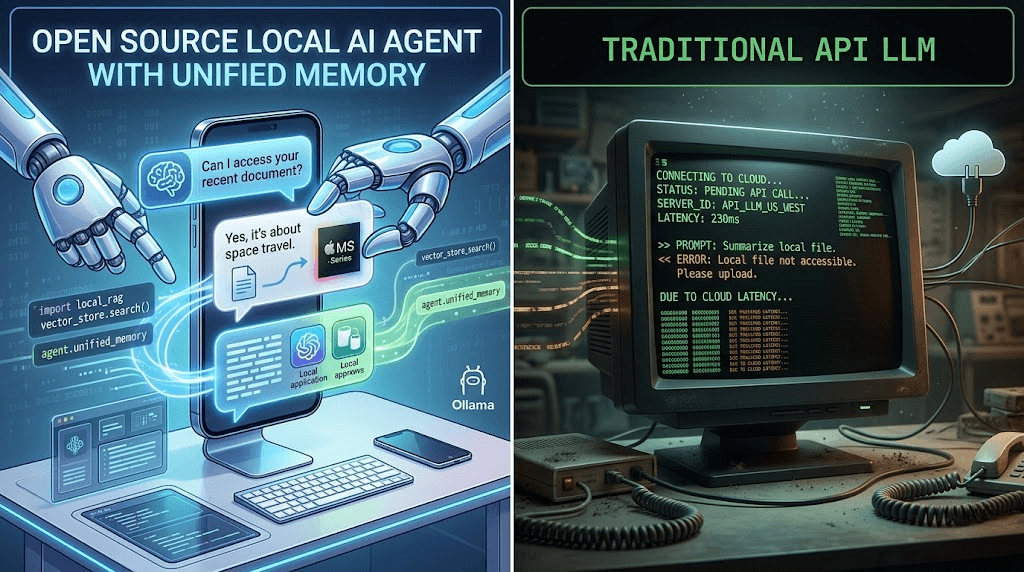
To scale B2B outreach safely, we must shift from Code Injection to Visual Perception. This guide details the "Stealth Stack": combining Jumei's Fingerprint Browsers (Hardware Isolation) with Promoi's AI Workers (Human-like Visual Operation).
Part 1: Why Chrome Extensions Are Killing Your Accounts
You don't get banned for sending invites; you get banned for Digital Fingerprint mismatches.
1. The "Extension Trap" (DOM Scanning)
LinkedIn scripts actively scan your browser's Document Object Model (DOM). Extensions inject HTML elements (like "Export" buttons) into the page. LinkedIn detects these unauthorized elements immediately. Even "undetectable" extensions leave traces in the Javascript console variables.
2. API vs. Interaction Mismatch
Extensions often call LinkedIn's internal APIs directly to fetch data instantly.
-
Bot Pattern: Fires API requests to
/api/v2/searchwith zero mouse movement. -
Human Pattern: Generates
mousemoveandmousedownevents before page loads. -
Result: LinkedIn flags this discrepancy as non-human traffic.
3. Browser Fingerprinting
Even with a VPN, your browser leaks data. LinkedIn uses Canvas Fingerprinting to create a unique hash based on your GPU rendering. If 50 accounts run on the same server/browser kernel, they share the same hash and are chain-banned.
Part 2: The "Stealth Stack" - Jumei Infrastructure + Promoi Intelligence
We decouple the Environment from the Operation.
Layer 1: Jumei Fingerprint Browser (The Container)
Instead of a messy local Chrome profile, run each account in a Jumei isolated profile.
-
Kernel-Level Spoofing: Jumei injects noise into Canvas, WebGL, and AudioContext readings. Each profile appears as a unique physical device.
-
Strict Isolation: Cookies and LocalStorage are encrypted and isolated. No cross-contamination between accounts.
-
Residential IP Binding: Bind a static Residential Proxy (e.g., AT&T/Verizon) to each profile. To LinkedIn, you appear as a remote worker in a specific city, not a data center bot.
Layer 2: Promoi "Browser Use" AI (The Worker)
Promoi uses Visual Large Action Models (V-LAM) to control the browser visually.
-
Visual Perception: The AI takes screenshots to identify buttons and text. It never touches the code or injects scripts.
-
Human Input Simulation: Promoi simulates hardware driver events. The mouse moves in non-linear Bezier curves with micro-jitters, and typing includes variable latency (80ms-150ms) and backspaces.
-
Self-Healing: If LinkedIn updates its UI, the AI adapts visually (finding the new button location) instead of crashing like a script.
Part 3: Setting Up the "Fortress" Environment
Step 1: Profile Configuration
-
Proxies: Use Static Residential Proxies only. Avoid Datacenter (AWS/Azure) or Rotating proxies.
-
Jumei Setup:
-
OS: Match the User Agent to the perceived user (e.g., Windows 11).
-
Hardware: Set CPU to 4 cores, RAM to 8GB to mimic a real PC.
-
Geolocation: Enable "Fill based on IP" to match browser GPS with proxy IP.
-
Step 2: Cookie Management
If migrating accounts: Export cookies from the old browser and import into Jumei. Crucial: Log in manually first and browse for 10 minutes to establish the new device fingerprint trust.
Part 4: The AI Workforce - Training Digital SDRs
Configure your AI Worker with a "Role" rather than a script.
System Prompt Example:
Role: Senior SDR for [Company]. Goal: Connect with Supply Chain Directors in US Retail. Behavior:
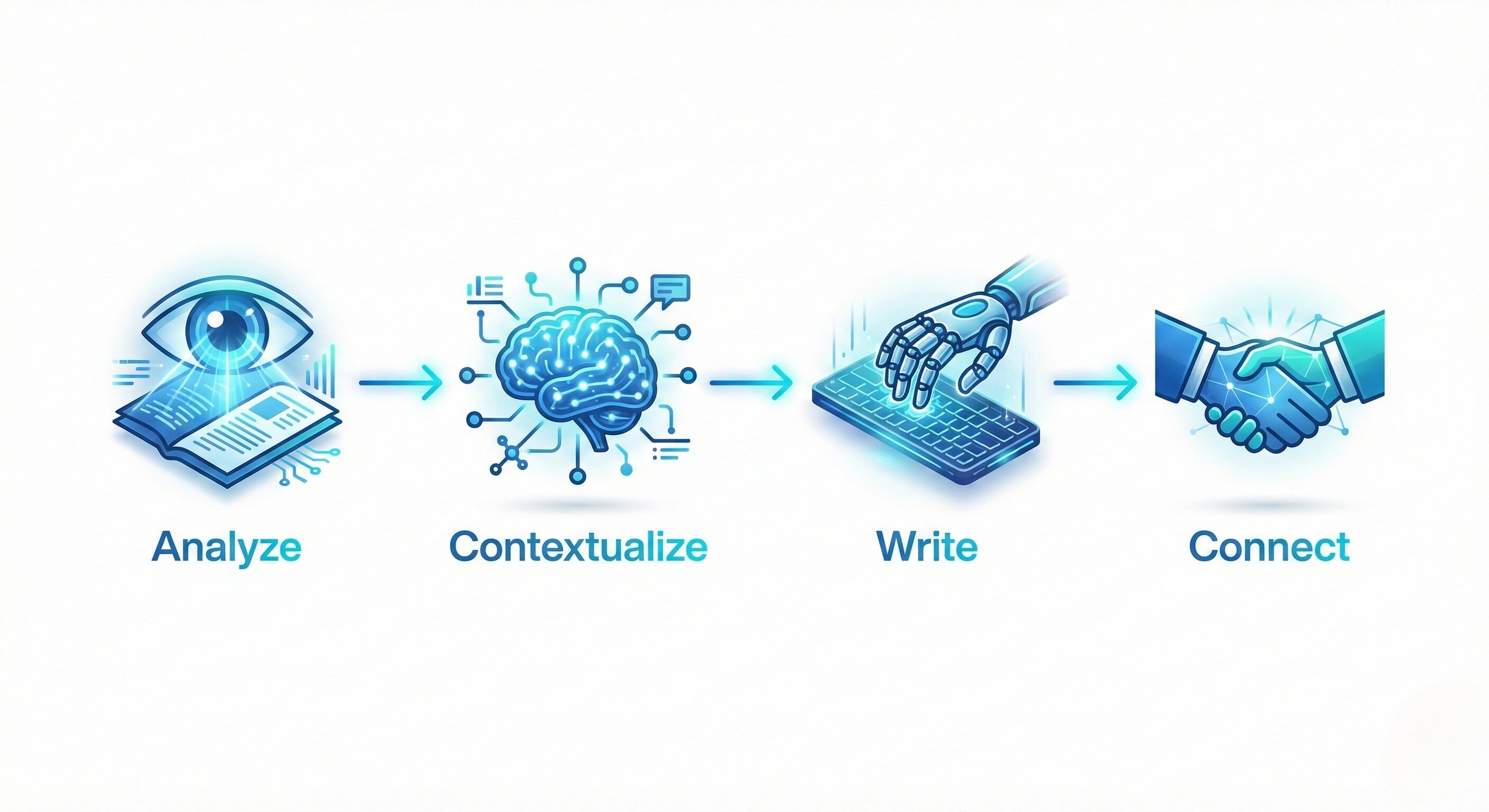
Scan the prospect's "About" section and last 3 posts.
Find a specific shared context (e.g., port congestion issues).
Draft a connection note (<300 chars) referencing that context.
Do not pitch in the first message.
Part 5: The Playbook - From Warm-up to 100 Leads/Day
Follow this strict schedule to avoid the "Commercial Use Limit" and bans.
Phase 1: Warm-up (Days 1-14)
-
Days 1-3: 10 mins scroll/day. Like 3 posts. 0 Invites.
-
Days 4-7: Fill profile. Join 3 groups. Send 2-5 manual-style invites to known peers.
-
Days 8-14: Comment on 2 posts/day. Send 5-10 invites to 2nd-degree connections.
Phase 2: Cruising Altitude (Day 30+)
Once trusted, Promoi can execute the following daily limits safely (spread over 8 hours):
-
Profile Views: 50-80
-
Connection Requests: 30-50 (Max 100/week for free accounts)
-
Sales Nav InMails: 20-30
Pro Tip: Use "Slow Drip" mode. The AI sends 2 invites, waits 45 mins, sends 1 invite, takes a "Lunch Break". Randomness is key.
Part 6: Advanced Strategies (ABM & Events)
Strategy A: Event Poaching
LinkedIn Event attendee lists are public goldmines.
-
Command: "Scrape attendees of 'Global Logistics Summit 2026'."
-
Action: AI visits each profile.
-
Message: "Hi [Name], see you at the Logistics Summit next week! Would love to connect beforehand."
-
Result: 60%+ acceptance rate due to shared context.
Strategy B: The "Poll" Bait
-
Post: Create a poll on your main account about a specific pain point.
-
Engage: Command AI Workers to message voters: "Saw you voted for 'Inventory Visibility' on John's poll. We just released a guide on that. Want a copy?"
Part 7: Disaster Recovery & FAQ
What if I get the "Commercial Use Limit" warning?
Promoi detects this banner automatically. It will pause searching and switch to "Content Engagement" mode (liking/commenting) for the rest of the month to preserve the account.
What if I get a "Restricted Account" (ID Check)?
-
Stop automation immediately.
-
Wait 48 hours.
-
Log in manually via Jumei.
-
Submit a driver's license that matches the profile name exactly.
-
After restoration, restart Warm-up protocol (Phase 1).
Does this work with Sales Navigator?
Yes. Since Promoi uses Visual AI, it works on any visible webpage. It can filter leads in Sales Navigator, scrape data visually, and export to CSV without touching the API.
Part 8: The Business Case (ROI)
Cost per Lead Comparison:
-
Manual Team: ~$50/lead (High Salary)
-
Chrome Extension: ~$5/lead (High Ban Rate/Churn)
-
Jumei + Promoi: ~$1/lead (Low Cost, Near-Zero Ban Rate)
Conclusion: The shift to Visual AI Workers on Fingerprint Browsers is an economic imperative. It allows you to clone your best SDR 100 times, scaling outreach infinitely while sleeping soundly knowing your accounts are secure behind Jumei's infrastructure.