You've successfully set up your autonomous AI agent, connected your APIs, and tasked it with a complex workflow. Suddenly, the Web UI freezes, the terminal throws a wall of red text, and you are greeted with the dreaded message: "Internal Server Error 500". Your AI agent has crashed.
Don't panic. Whether you are running the OpenClaw Windows One-Click Installer, the Mac M-Chip native version, or a Docker container on a VPS, Error 500 is one of the most common—and most solvable—issues in the OpenClaw ecosystem.
In web development and API architecture, an HTTP 500 error is a generic "catch-all" response. It simply means that the OpenClaw backend server encountered an unexpected condition that prevented it from fulfilling the request. However, because OpenClaw interacts with third-party LLMs (Large Language Models), local vector databases, and system-level AgentSkills, the root cause can vary widely.
In this ultimate troubleshooting guide, we will break down exactly how to diagnose the cause of your crash, read the error logs, and apply the permanent fixes required to get your AI assistant back online in minutes.
Step 1: Stop Guessing, Start Reading the Logs
Before you start randomly changing settings or reinstalling the software (which might wipe your agent's valuable long-term memory), you need to find out why the backend crashed. The UI will only show "Error 500", but the truth lies in the terminal logs.
Where to find your OpenClaw Logs:
- If using the Windows .exe Installer: Right-click the OpenClaw icon in your system tray and select "Open Log Folder". Open the `error.log` file using Notepad.
- If using Docker: Open your terminal and run the command:
docker logs my-openclaw-container --tail 50(replace `my-openclaw-container` with your actual container name). - If running from Source (Node/Python): Simply look at the terminal window where you executed
npm startorpython main.py.
Once you have the logs open, look for the lines immediately preceding the "Error 500" message. Below, we have categorized the 5 most common log outputs and their exact fixes.
Fix #1: API Key Exhaustion or Authentication Failure (Most Common)
OpenClaw is the "body", but models like GPT-4o, Claude 3.5 Sonnet, or Gemini are the "brains". If the brain refuses to talk to the body, OpenClaw crashes.
Error Details: { "error": { "message": "You exceeded your current quota, please check your plan and billing details.", "type": "insufficient_quota", "param": null, "code": "insufficient_quota" } }
The Solution:
If your log looks like the one above, congratulations—your OpenClaw installation is perfectly fine. The issue is entirely with your LLM provider (OpenAI, Anthropic, etc.).
- Check Billing: Log into your OpenAI API platform or Anthropic Console. Check your current billing dashboard. Even if you have a ChatGPT Plus subscription, API access is billed separately. You must load credits into your API account.
- Invalid Key: If the error says
invalid_api_key, you may have copied the key incorrectly (watch out for trailing spaces) or the key has been revoked. Generate a new one and paste it into the OpenClaw Web UI under Settings -> LLM Provider. - Rate Limiting: If the error says
429 Too Many Requests, your agent is thinking/looping too fast. Go to OpenClaw Advanced Settings and increase theAgent Loop Delayfrom 1000ms to 3000ms.
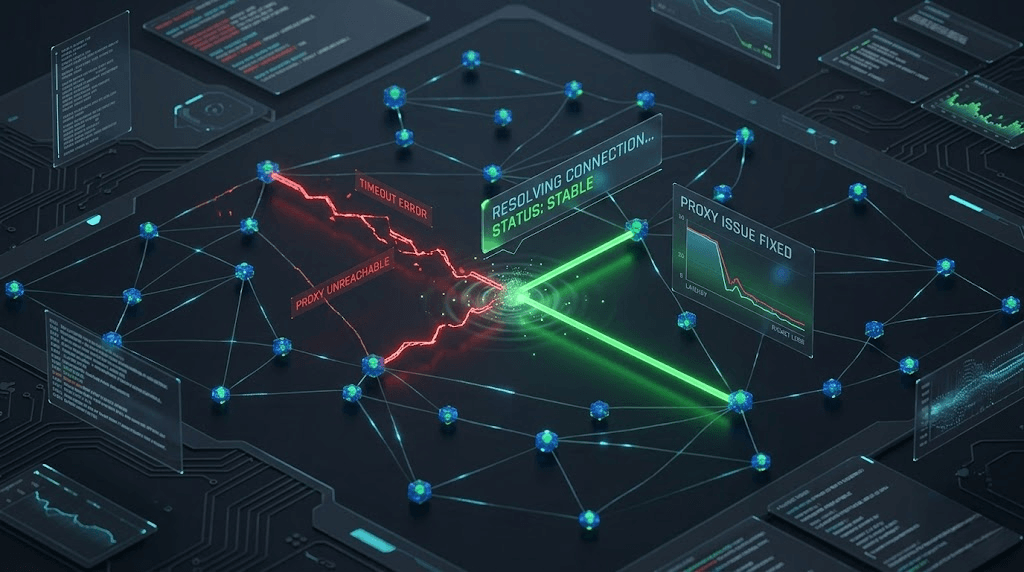
Fix #2: Network and Proxy Configuration Timeouts
If your server is located in a region where access to the OpenAI or Anthropic API is blocked, or if you are behind a strict corporate firewall, OpenClaw will timeout trying to reach the LLM, resulting in a 500 Error.
Cause: connect ETIMEDOUT 104.18.32.47:443
The Solution:
You need to route OpenClaw's backend traffic through a proxy.
- Via Web UI: Go to Settings -> Network. Enter your local proxy address (e.g.,
https://www.jumei.aiif you are using standard proxy software on Windows/Mac). - Via .env File: If the UI is inaccessible, open your `.env` file in the OpenClaw root directory and add the following lines:
Restart OpenClaw for the changes to take effect.HTTP_PROXY="https://www.jumei.ai" HTTPS_PROXY="https://www.jumei.ai"
Fix #3: Local LLM (Ollama / LM Studio) Connection Drops
Many advanced users prefer running OpenClaw entirely offline by connecting it to local models (like Llama-3 or Qwen) via Ollama. A 500 Error frequently occurs here when the local model takes too long to respond.
Cause: read ECONNRESET or FetchError: network timeout at: http://localhost:11434/api/generate
The Solution:
- Is Ollama Running? Ensure the Ollama background service hasn't crashed. Open a terminal and type
ollama psto see if the model is loaded into memory. - Increase Timeout Threshold: Local inference on a consumer GPU (or CPU) is much slower than cloud APIs. OpenClaw expects a response within 60 seconds by default. If your Mac or PC is struggling, it will timeout. Go to
config.jsonor the UI Settings, find theLLM Request Timeout, and increase it to300000(5 minutes). - Check VRAM Limits: If your local model is too large for your graphics card (e.g., trying to run a 70B model on an 8GB VRAM GPU), Ollama will silently crash, causing OpenClaw to throw a 500 error. Switch to a smaller, quantized model (like an 8B or 7B variant).
Fix #4: Corrupted Vector Database (Memory Issue)
OpenClaw uses a local Vector Database (usually ChromaDB, SQLite, or LanceDB) to store the agent's long-term memory. If your computer lost power abruptly, or if the database locked up, the agent cannot read its own memory, triggering a catastrophic 500 crash on startup or when recalling data.
SqliteError: database disk image is malformed
The Solution:
You will need to clear the corrupted memory cache. Warning: This will give your agent a mild "amnesia" regarding past conversations, but system prompts and core settings will remain intact.
Navigate to your OpenClaw installation directory, locate the folder named /data/vector_cache or /data/chroma_db, and delete the entire folder. Then, restart OpenClaw. The system will automatically generate a fresh, uncorrupted database upon the next boot.
Fix #5: System Out of Memory (OOM) / Docker Limits
If you are running OpenClaw with multiple heavy AgentSkills (like the Puppeteer browser-automation skill for SEO scraping), the Node.js or Python backend can consume massive amounts of RAM.
FATAL ERROR: Reached heap limit Allocation failed - JavaScript heap out of memory
[ERROR] 500 Internal Server Error (Connection Lost)
The Solution:
- For Windows/Mac Source Users: You need to increase the memory allocated to Node.js. Start OpenClaw with this flag:
node --max-old-space-size=8192 index.js(allocates 8GB of RAM). - For Docker Desktop Users: By default, Docker might only allocate 2GB of RAM to containers. Open Docker Desktop Settings -> Resources -> Advanced, and drag the Memory slider to at least 4GB or 8GB. Click "Apply & Restart".
Summary Checklist for Error 500 Diagnostics
Frequently Asked Questions (FAQ)
Q1: If I reinstall OpenClaw to fix Error 500, will I lose my Agent's memory?
It depends on how you reinstall. If you use Docker and haven't mounted a volume for the /data directory, yes, it will be lost. To prevent this, always ensure your data directory is safely backed up or mapped correctly outside the container. For Windows One-Click users, running the installer again usually overwrites core files but leaves the /data folder intact.
Q2: Why does Error 500 only happen when I use the "Web Search" AgentSkill?
The Web Search skill often relies on headless browsers (like Puppeteer/Chromium) or third-party APIs (like SerpAPI). If Chromium fails to launch due to missing OS dependencies (like libnss3 on Linux), or if your SerpAPI key is invalid, the specific skill will crash the agent loop. Check our guide on Top 10 OpenClaw Skills to ensure you have the correct dependencies installed.
Q3: I checked everything, but it still crashes immediately on startup. What now?
If you recently updated OpenClaw, there might be a breaking change in the new version's schema. You can try downgrading to the previous stable release via GitHub, or completely wipe your installation (backing up your .env file first) and start fresh by following our Official OpenClaw Download Guide.
Conclusion
An HTTP Error 500 in OpenClaw can look intimidating, but it is rarely a fatal software bug. In 90% of cases, it is simply a communication breakdown between the agent's core engine and its "brain" (the LLM API) or a strict network environment.
By learning how to read the terminal logs and systematically checking your API billing, proxy settings, and memory limits, you can master the maintenance of your autonomous AI assistant.
👉 Next Step:
Now that your agent is running stably without crashes, it's time to supercharge its capabilities! Check out our next tutorial on how to expand your agent's features safely: OpenClaw Plugin Market: How to Find and Safely Install Third-Party Skills.