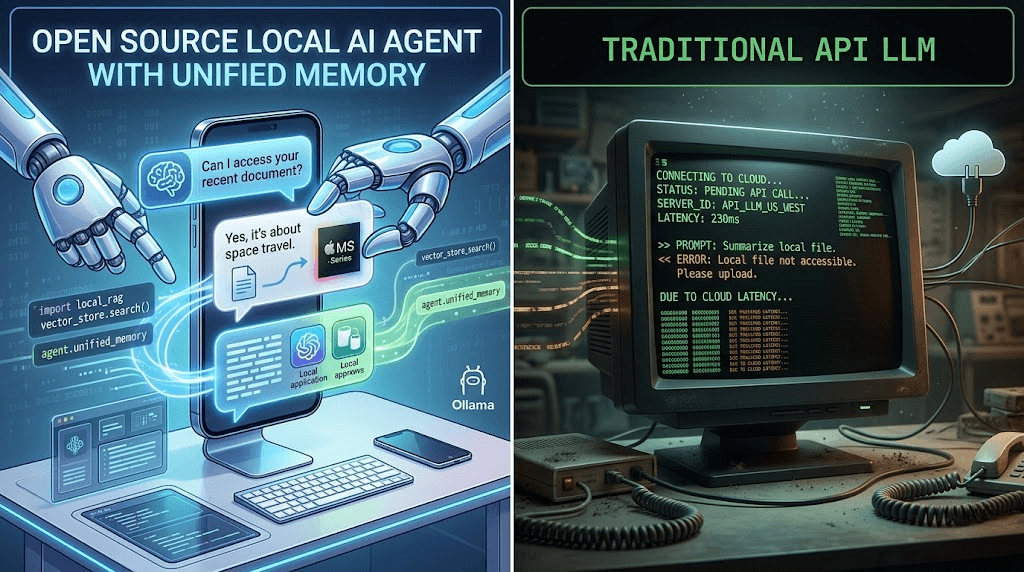
OpenClaw is rapidly changing how we interact with Artificial Intelligence. Instead of opening a separate browser tab to chat with an AI that has zero context about your life, OpenClaw acts as an agentic runtime environment on your local machine. It can read your files, manage your schedule, and execute terminal commands.
But the real magic happens when you free OpenClaw from your desktop monitor. By connecting it to messaging apps like Telegram, you transform it into a 24/7 personal Jarvis that lives right in your pocket. In this comprehensive guide, we'll walk you through the exact steps to integrate OpenClaw with a Telegram Bot securely and for free.

1. Why Connect OpenClaw to Telegram?
If you're already running OpenClaw locally via its Web UI, you might wonder why you need to go through the hassle of setting up a Telegram integration. Here is a quick breakdown of why power users prefer the chat interface:
| Feature | Standard Web UI | Telegram Bot Integration |
|---|---|---|
| Accessibility | Requires you to be at your PC or exposing ports to the web. | Global Access: Send commands from your phone anywhere in the world. |
| Notification Push | Passive. You have to check the UI for task completion. | Proactive: The AI can proactively message you when a long task (e.g., web scraping, rendering) is done. |
| Voice Commands | Limited browser microphone support. | Native: Send a voice memo on Telegram, and OpenClaw can transcribe and execute it. |
2. Prerequisites
Before we begin the integration, ensure you have the following ready:
- A running instance of OpenClaw on your local machine or server (refer to our Local Deployment Guide if you haven't set this up yet).
- A Telegram account logged in on your mobile device or desktop.
- Basic familiarity with editing YAML or JSON configuration files.
3. Step-by-Step Telegram Bot Setup
Step 1: Create a Bot via BotFather
Telegram manages all third-party bots through an official bot called BotFather. We need to ask BotFather for a unique API token.
- Open your Telegram app and search for
@BotFatherin the global search bar. Ensure it has the blue verified checkmark. - Start a chat and send the command:
/newbot - BotFather will ask you for a name (e.g., "My Claw Assistant") and a unique username that must end in 'bot' (e.g.,
johns_openclaw_bot). - Once successful, BotFather will provide an HTTP API Token (a long string of characters like
123456789:ABCdefGhIJKlmNoPQRstuVWXyz). Copy this token and keep it secure.
Step 2: Configure OpenClaw Channels
Now, we need to tell your local OpenClaw instance to listen to this specific Telegram bot. Open your OpenClaw working directory and locate the config.yaml file.
Find the channels section and add the Telegram configuration as follows:
channels:
  web_ui:
    enabled: true
    port: 3000
  telegram:
    enabled: true
    bot_token: "PASTE_YOUR_API_TOKEN_HERE"
    # IMPORTANT: Polling is easier for local setups behind a router.
    method: "polling"
    allowed_users:
      - "YourTelegramUsername"
allowed_users array with your exact Telegram Handle (without the @ symbol). If you skip this, anyone on the internet who finds your bot can send commands to your computer!Step 3: Restart and Test Your Assistant
Save the config.yaml file and restart your OpenClaw server (e.g., using docker-compose restart or simply stopping and starting the Python script).
Open Telegram, search for the bot username you created in Step 1, and hit Start. Try sending a prompt like:
"List the top 3 largest files in my Downloads folder."
Within seconds, your local AI will process the command, access your file system securely, and reply to your Telegram message with the results. You now have a fully functional mobile command center!
4. Scaling Up: From Personal Bot to Enterprise Automation
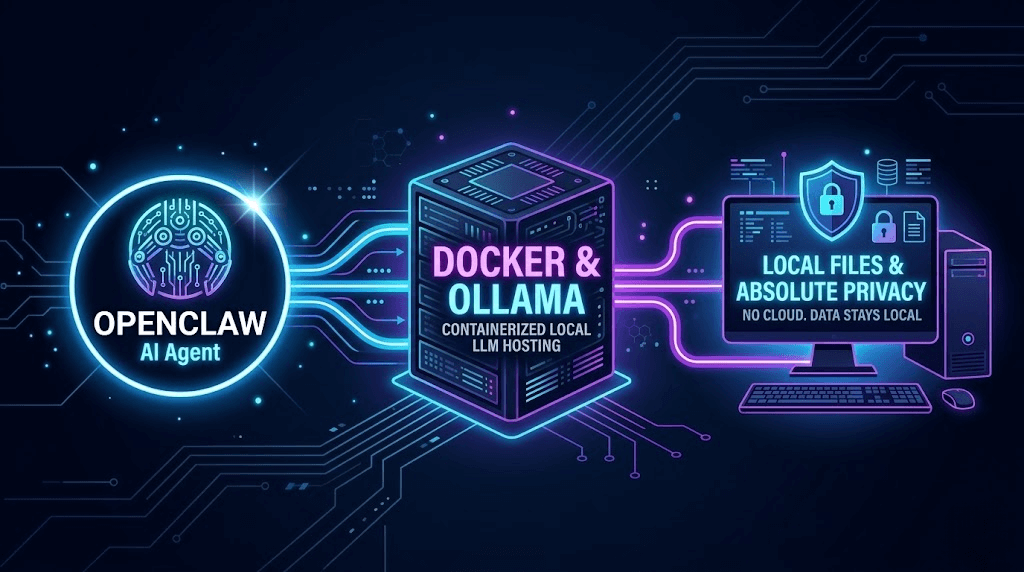
Setting up OpenClaw via Telegram is a fantastic productivity hack for individual developers and tech enthusiasts. It perfectly handles daily personal tasks like summarizing documents, fetching news, or managing local scripts.
However, if you are looking to automate social media operations for your business, relying on a single Telegram bot and an open-source local script carries massive risks.
For instance, if you are an e-commerce brand or an agency trying to scale your reach through overseas social media automation across platforms like TikTok, Instagram, and Facebook, using basic API scripts will quickly result in account shadow-bans or permanent suspensions.
When you need to securely manage hundreds of accounts, enterprise-grade solutions are mandatory. This is where professional platforms like the Jumei Matrix System step in. Instead of running fragile local scripts, Jumei utilizes real cloud phone hardware and physically isolated environments. This ensures 100% anti-association (anti-detect) capabilities, allowing your team to automate bulk posting, DM outreach, and matrix growth with near-zero ban rates—something a simple OpenClaw setup cannot achieve for commercial marketing.
5. Frequently Asked Questions (FAQ)
A: No! If you set method: "polling" in your config, OpenClaw will actively reach out to Telegram's servers to check for new messages. This bypasses NAT and firewalls, meaning it works perfectly even on a standard home Wi-Fi network.
A: Yes. You can invite your bot to a group chat. You will need to change the BotFather privacy settings (/setprivacy to Disable) so the bot can read all messages in the group. Make sure to update your config.yaml to allow the Group ID in the permissions list.
A: While Telegram uses encryption between your phone and their servers, the messages are briefly decrypted on Telegram's end before being fetched by your bot. Do not send highly sensitive passwords or credit card info through the chat interface. For extreme privacy, stick to the Local Web UI.